Photo Rejected by an Online Form? 9 Reasons and Fixes
Published 7 November 2026 · SepoooTools blog
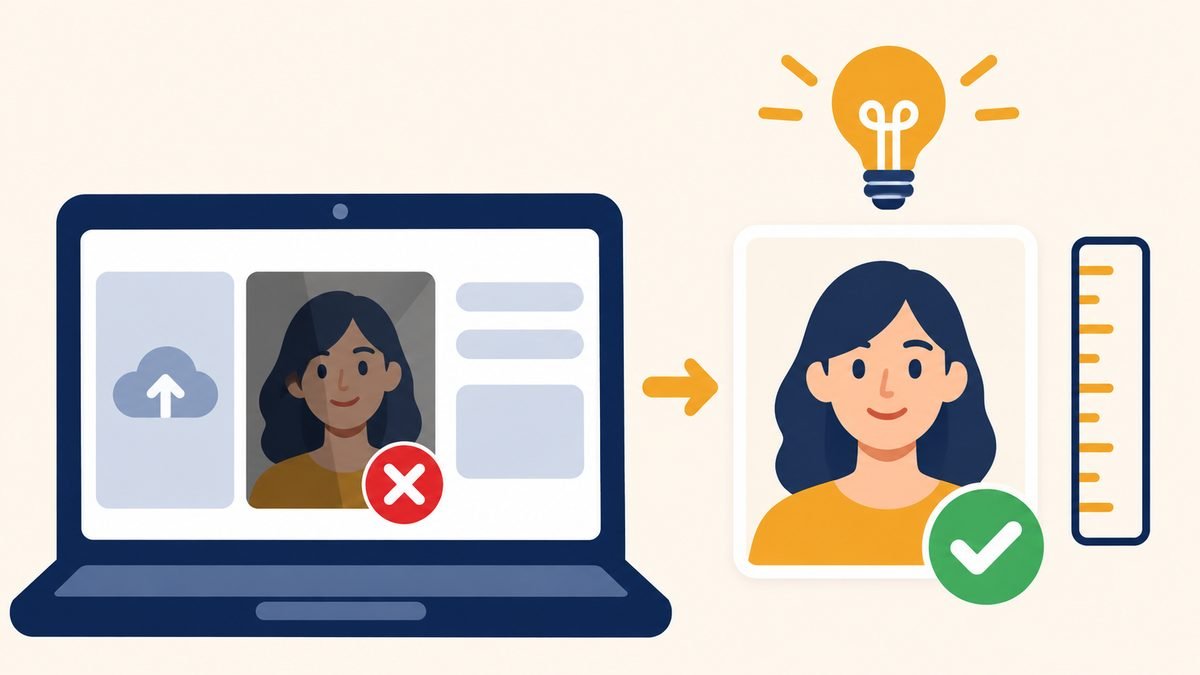
You upload your photo. A red message appears: "Invalid file", "Photo does not meet requirements", or nothing happens at all. You try again. Same result.
The error message rarely tells you the real problem. Here are the nine most common reasons, and the fix for each one.
1. The file is too big (KB / MB)
The most common reason by far. Phone photos are 2–8 MB; forms often allow 50–500 KB. Fix: use the Image Compressor and type the limit from the form.
2. The file is too small
Yes, this exists. Some forms say "between 10 KB and 100 KB". If you compressed too much, it fails. Fix: compress again with a target closer to the maximum, for example 90 KB for a 100 KB limit.
3. Wrong size in pixels
"Photo must be 600 × 600 px" or "width 200 px, height 230 px". Fix: Image Resizer with the exact numbers. If the shape is different (square vs. tall), crop first, so the face is not squeezed.
4. Wrong file type
iPhones often save photos as HEIC. Many forms only accept JPG or JPEG. Some old sites refuse PNG or WebP. Fix: convert with the Image Converter. Tip: on iPhone, Settings → Camera → Formats → "Most Compatible" saves new photos as JPG.
5. The file name has strange characters
Some older portals break on names like "Foto (2) – final ✓.jpg". Fix: rename to something simple: photo.jpg or lastname_photo.jpg. No spaces, no symbols.
6. Background not plain
Many ID forms check the background. Patterns, doors or a coloured wall can be rejected. Fix: take a new photo in front of a plain light wall, about one step away from it.
7. Shadows or bad light
Shadows on one side of the face or behind the head are a classic reason. Fix: face a window, no flash. Our guide How to take a passport photo at home shows the full setup.
8. Head too small or too big
ID photos often have rules for how much of the frame the head fills. Fix: the Passport Photo tool shows a guide so the face lands in the right place.
Open Passport Photo – free, nothing is uploaded →
9. The photo was edited
Beauty filters, smoothed skin, changed background with AI – official offices can reject these. The US State Department, for example, says not to change your photo with apps, filters or AI. Fix: use a real, unfiltered photo. Cropping and resizing are fine.
Still not working?
- Try another browser (Chrome on Android, Safari on iPhone).
- Try from a computer – some old portals do not work well on phones.
- Look for a "help" or "FAQ" link next to the upload button. The exact rules are often hidden there.
- Take a screenshot of the error and contact the office. It proves you tried before the deadline.
A small checklist before you upload
- JPG? ✔
- Under the KB limit and over the minimum? ✔
- Exact pixels, if asked? ✔
- Plain background, no shadows? ✔
- Simple file name? ✔
Things that make this easier
- White photo background – plain background anywhere
- LED ring light – no more face shadows
- Phone tripod with remote – straight photo without help
Als Amazon-Partner verdiene ich an qualifizierten Verkäufen. Links open Amazon.de. The price stays the same for you.
Questions people ask
Why does the form say my photo is invalid?
Usually the file is too big, the wrong type (HEIC/PNG) or the wrong size in pixels. Check the rules next to the upload button.
How do I change HEIC to JPG?
Use the Image Converter, or set your iPhone camera to 'Most Compatible' for new photos.
My photo is under the limit but still rejected. Why?
Check the minimum size, the exact pixels, and the file name. Then try another browser.
Can I use a selfie?
Often yes, if the light, background and head size are right. The back camera from further away usually looks better.
Are my photos safe with your tools?
Yes. Everything runs in your browser; the photo is never uploaded.
General information only. Rules change – always check the official page of the office you are applying to.