HEIC photo won't upload? How to turn it into a JPG
Published 7 November 2026 · SepoooTools blog
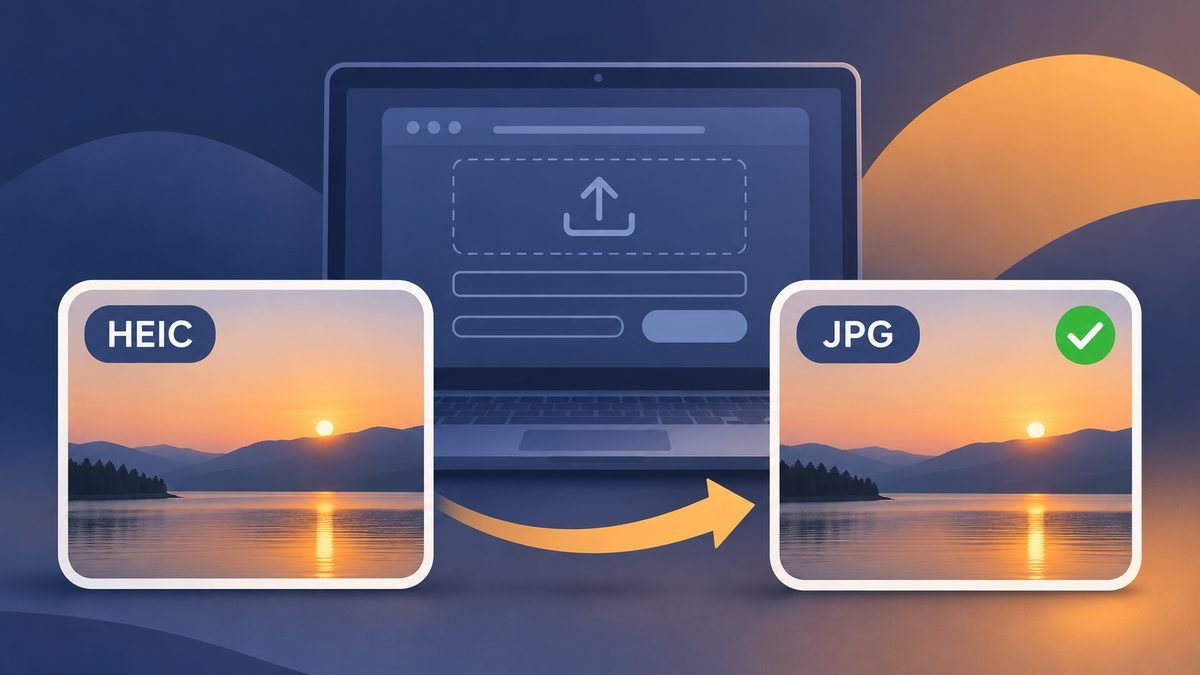
You take a photo with your iPhone. You open a form on your laptop, tap "upload", and nothing happens. Or you get a red line: "File type not supported. Please use JPG or PNG."
The photo is fine. The problem is the format. Your iPhone saved it as HEIC, and the website only knows JPG. Here is how to fix it in under a minute, and how to stop it happening again.
What is HEIC, in simple words?
HEIC is the photo format Apple has used on iPhone and iPad since iOS 11. It keeps the same quality as JPG in a smaller file, which saves space on your phone. Good idea – but many upload forms, office portals and older Windows computers simply do not open it.
You can often spot it by the name: IMG_1234.HEIC instead of IMG_1234.JPG.
The quick fix: convert HEIC to JPG
- Open our free HEIC to JPG converter.
- Tap Choose HEIC photos and pick one or more photos.
- Leave JPG selected. For forms, "Long side 2000 px" is a good size.
- Tap Download – or Download all (ZIP) for many photos.
Open HEIC to JPG – free, nothing is uploaded →
Everything happens in your browser. Your photos are not sent to any server – important when the photo is of your passport, ID card or a private letter.
If the form also has a KB limit
Many forms say "JPG, maximum 200 KB" or even "50 KB". After converting, look at the second number next to your photo. Still too big? Pick a smaller size in the converter, or use the Image Compressor and type your exact limit. Our guide how to reduce photo size to 20, 50, 100 or 200 KB explains it step by step.
Three ways to stop the problem for good
1. Let the iPhone take JPG photos
Open Settings → Camera → Formats and choose Most Compatible. New photos are saved as JPG from now on. The files are a bit bigger, but they work everywhere. Old photos stay HEIC.
2. Let the iPhone convert when you copy
Open Settings → Photos and, at the bottom under "Transfer to Mac or PC", choose Automatic. When you copy photos to a computer with a cable, the iPhone turns them into JPG for you.
3. Upload from the iPhone itself
When you pick a photo in Safari on the iPhone, it is often changed to JPG on the way. So if a form refuses the photo on your laptop, try filling it in on the phone. It does not work on every site, but it is worth a try.
What about Windows?
Windows can open HEIC only with extra extensions from the Microsoft Store, and one of them may cost a small fee. If you only need a few photos, converting them to JPG is quicker and free.
Small things to know
- Live Photos become normal photos. The short video is not kept.
- The new JPG does not contain the GPS location or phone details. For forms and sharing, that is a plus.
- For printing, keep the original size and choose 95 % quality.
Things that make this easier
- USB stick for iPhone – move photos to a PC without the cloud
- External SSD 1 TB – a safe backup of your photos
Als Amazon-Partner verdiene ich an qualifizierten Verkäufen. Links open Amazon.de. The price stays the same for you.
Questions people ask
What is a HEIC file?
HEIC is the photo format Apple uses on iPhone and iPad since iOS 11. It keeps good quality in smaller files, but many websites and Windows PCs cannot open it.
Why does a website say my iPhone photo is not supported?
The form only accepts JPG or PNG, and your photo is HEIC. Convert it to JPG first, then upload again.
Will converting HEIC to JPG make my photo worse?
Not in a way you can see. JPG at 85 % quality looks the same on screen. The file can even get smaller if you also reduce the size in pixels.
Can I stop my iPhone from saving HEIC?
Yes. Settings → Camera → Formats → Most Compatible. New photos are then saved as JPG. Old ones stay HEIC.
Is it safe to convert photos online?
With many sites your photo is uploaded to a server. Our tool works in your browser, so the photo never leaves your phone.
More help: Photo rejected by an online form? 9 reasons and fixes.