How to Scan Documents With Your Phone (Clear and Small)
Published 7 November 2026 · SepoooTools blog
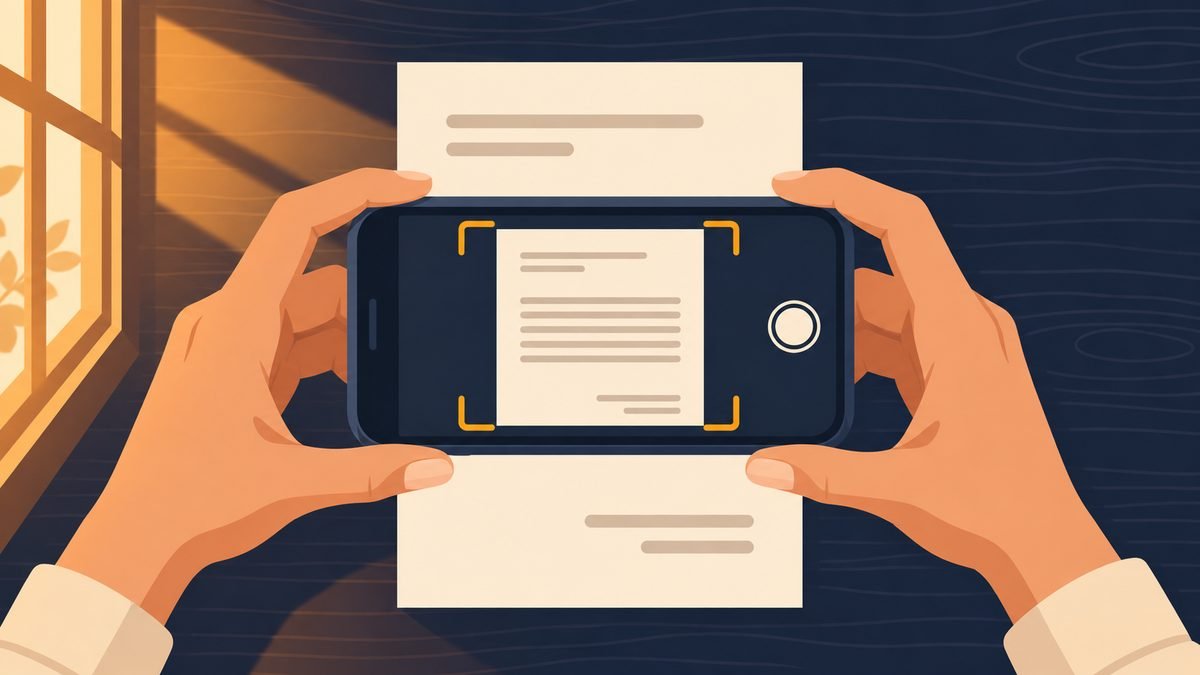
An office asks you to "send a copy of your documents". You do not have a scanner. So you take photos with your phone – and they come out dark, crooked, with your thumb in the corner and a 6 MB file size.
Your phone can make scans that look almost like a real scanner. You just need a few habits.
1. Use your phone's built-in scanner first
Many phones already have a document scanner. On iPhone it is in the Notes app and the Files app. On many Android phones it is in Google Drive (the + button, then "Scan") or in the camera app, which shows a "scan document" button when it sees paper. These apps find the edges and straighten the page for you.
If your phone does not have it, a normal photo works too, with the tips below.
2. Light: daylight, no flash
Put the paper near a window. Flash makes a bright spot in the middle and grey corners. Make sure your own head and phone do not throw a shadow over the page – stand so the light comes from the side.
3. Dark background, flat paper
Put a white page on a dark table. The contrast helps the phone see the edges. Flatten folded letters under a book for a minute first.
4. Hold the phone straight above
Hold the phone parallel to the paper, right above the middle. If you hold it at an angle, the page becomes a trapezoid and text at the far edge gets small. Fill most of the screen with the page, but leave a small border.
5. Check before you move on
Zoom in on the photo. Can you read the small print and numbers? If not, take it again. It is easier now than after the office says "not readable".
6. Fix the photo
- Page sideways? Use Rotate & Flip.
- Table or fingers in the picture? Use Crop Image.
7. Make one PDF
Offices prefer one PDF instead of eight photos. It keeps the order and is easy to print. Use JPG to PDF: choose all photos, put them in the right order, choose A4 and download one file.
Open JPG to PDF – free, nothing is uploaded →
8. Check the size
Ten phone photos can make a 30 MB PDF. Email services and portals often have limits. If the PDF is too big, use Compress PDF. For text documents a size of 200–400 KB per page is usually plenty.
Good file names
"IMG_20261107_0931.pdf" tells nobody anything. Use names like Lastname_Payslips_Sept-Oct.pdf. Offices handle hundreds of files – a clear name helps them and you.
Keep your data safe
IDs, payslips and bank letters are private. Do not upload them to random free sites. Our tools run in your browser – the files stay on your phone. And after sending, delete the copies you no longer need from your gallery.
Things that make this easier
- Portable document scanner – for many pages, very sharp
- Wi-Fi printer with scanner – scan and print from your phone
- A4 document folder – keep the originals in order
Als Amazon-Partner verdiene ich an qualifizierten Verkäufen. Links open Amazon.de. The price stays the same for you.
Questions people ask
Is a phone scan good enough for official documents?
Usually yes, if it is sharp, straight and readable. Some offices still want certified copies or originals – check their letter.
How do I scan many pages into one PDF?
Take one photo per page, then use JPG to PDF to put them in order and save as one file.
Why is my scanned PDF so big?
Every page is a full phone photo. Compress the PDF or lower the quality in JPG to PDF.
Should I scan in colour or black and white?
Colour for IDs and stamps; black and white or grey is fine for plain letters and makes the file smaller.
Does my document get uploaded?
Not with our tools. Everything runs on your own device.
General information only. Rules change – always check the official page of the office you are applying to.