How to turn a video lecture into PDF notes
Published 15 November 2026 · SepoooTools blog
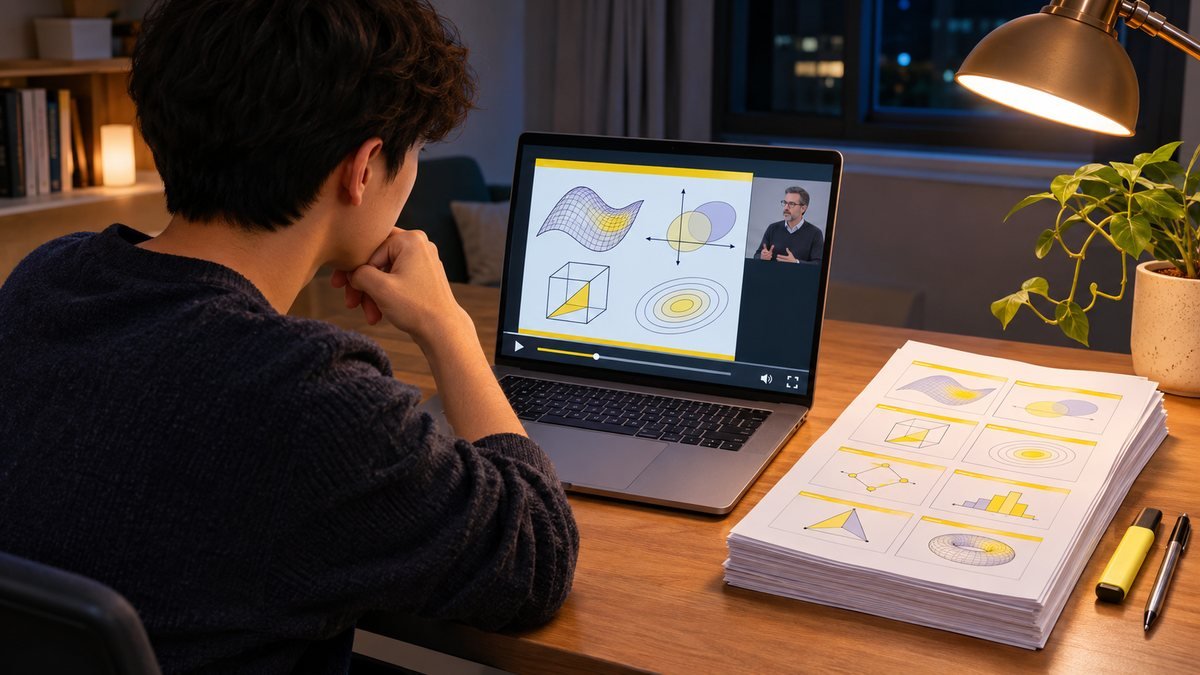
You watched a two-hour online class. The teacher showed 40 slides. Now the exam is next week, and the slides are only inside the video. Scrolling back and forth to find one slide is slow and painful.
There is an easier way. You can pull every slide out of the video and put them into one PDF. Then you can read it on the bus, print it, or write notes on it. It takes a few minutes and costs nothing.
🎞️ Open the free Video to PDF tool
Who this is for
- Students with recorded lectures, Zoom or Teams classes.
- People in training — language courses, job courses, online certificates.
- Anyone learning from a tutorial — software, cooking, repairs, crafts.
- Office workers who got a webinar recording instead of the slides.
Tip: always ask the teacher for the slides first. Many will send them. If they don't, or the video is all you have, this method helps.
What you need
- The video file on your phone or computer (for example from a download link, a Teams/Zoom recording, or your own screen recording).
- A normal browser — Chrome, Safari, Edge or Firefox.
- That's it. No app, no account.
A link to YouTube or a streaming site is not enough. The tool needs the file itself. Only use videos you are allowed to use.
Step by step: video to PDF notes
- Open Video to PDF and choose your video. It opens in a small player. Nothing is uploaded — your browser does all the work.
- Pick “Each new slide”. The tool looks at the video every second. When the picture changes a lot (a new slide), it saves that moment. It also waits a little so you don't get a half-faded slide.
- Skip the boring parts. Set a start time after the “hello, can you hear me?” part, and an end time before the questions.
- Tap “Get pictures from video”. A one-hour lecture takes a few minutes. You can watch the counter grow. You can stop at any time and keep what you have.
- Clean up. Tap any picture you don't want. If a slide is missing, pause the video there and tap “Add this frame”.
- Make the PDF. Choose “A4 portrait · 2 per page” for notes with space to write, or “1 picture per page” to read on a screen. Tap “Make PDF” and download.
Which setting should I use?
- Normal slides: “medium” is the best start. The tool ignores small parts that keep moving, like the teacher's webcam in a corner.
- Teacher adds one bullet point at a time: use “high”, so every new line gets its own page — or keep “medium” to get only the finished slides.
- Software tutorial (screen recording): use “high” sensitivity — small changes, like a new menu, matter here.
- Cooking or DIY video: use “Every few seconds” with 10–20 seconds, then remove the pictures you don't need.
- Just a quick overview of a long video: use “Fixed number”, for example 24 pictures, and “6 per page”. You get a one-page or four-page summary sheet.
Make your notes even better
- Keep the time under each picture. Then you can jump back to that point in the video when something is unclear.
- Print 2 slides per page. There is room next to each slide for your own notes. Many students find this easier than reading on a phone.
- Join several lessons into one file with Merge PDF — one PDF per subject is easy to find later.
- File too big to send? Make the PDF with “Max 960 px” and quality 70, or use Compress PDF. Our post PDF too large to upload? explains more.
- Need one slide as a picture? Use “Download pictures as ZIP”, or turn a page back into an image with PDF to JPG.
When it does not work
The video does not open. Your browser has to be able to play the file. MP4 works almost everywhere. Videos from an iPhone in “High Efficiency” format (HEVC, .mov) sometimes don't open in Chrome on Windows. Try Safari, or on the iPhone go to Settings → Camera → Formats and choose “Most Compatible” for new videos.
All pictures are black. The video is probably copy-protected (like paid streaming services). That is on purpose and can't be changed.
Text in the PDF can't be copied. Right — the pages are pictures of the screen. To copy text, you would need OCR, which this tool does not do.
Good to have for online classes
If you record or watch a lot of classes on your phone, a few small things make life easier:
- Phone tripod with remote — to film a whiteboard or your own lesson without shaking.
- USB-C memory stick — long lecture videos fill a phone fast; move them off.
- Tablet / phone stand for the desk — watch the video and write notes at the same time.
Als Amazon-Partner verdiene ich an qualifizierten Verkäufen.
Questions people ask
Is it safe for private or school videos?
Yes. The video is not sent anywhere. The pictures and the PDF are made on your own device.
Can I turn a YouTube video into a PDF?
Not with a link. You need the video file, and you should only use videos you have the right to use.
How long does it take?
A one-hour lecture usually takes a few minutes on a computer. On an older phone it can take longer. Choosing “Check every 2 s” makes it about twice as fast.
Why do I get the same slide many times?
Something else on the screen is moving — often a webcam picture or a mouse pointer. Lower the sensitivity and try again, or just tap the extra pictures to remove them.
Does it work on iPhone and Android?
Yes, in Safari and Chrome. Keep the screen on while it works, and use a smaller picture size for very long videos.